
In this content, we will explain the step by step guide to Setup SMTP.com API in WordPress for Sending Emails. Native API integration is a better approach than traditional SMTP Setup. However, by using SMTPPai wordpress plugin you can configure smtp.com API or still connect via using “Other SMTP” option in this plugin.
SMTP.com needs an API key and a Channel name. Channels group sending domains and allowed From addresses — the channel name must match exactly (case-sensitive).
Configure SMTP.com in WordPress
SMTP.com is just another popular email provider for marketing and transactional emails. Just another alternative of Amazon SES, Postmark, Sendgrid, Mailgun etc.
Prerequisites
- SMTP.com account
- Adding Sending Emails/Domains
- API key with permission to send email
- From address allowed on that channel
Download & Install SMTPPai WordPress Plugin
SMTPPai is free wordpress SMTP plugin and offering features like any other Pro SMTP Plugins. You can connect almost every popular email providers native API using SMTPPai. Offering Specify Connection for Multi-routing (for e.g. woocommerce, wordpress emails, newsletter, outreach etc.), Backup Connections, Email Logs etc.
Open SMTPPai
- SMTPPai → Dashboard → Add connection
- Click SMTP.com
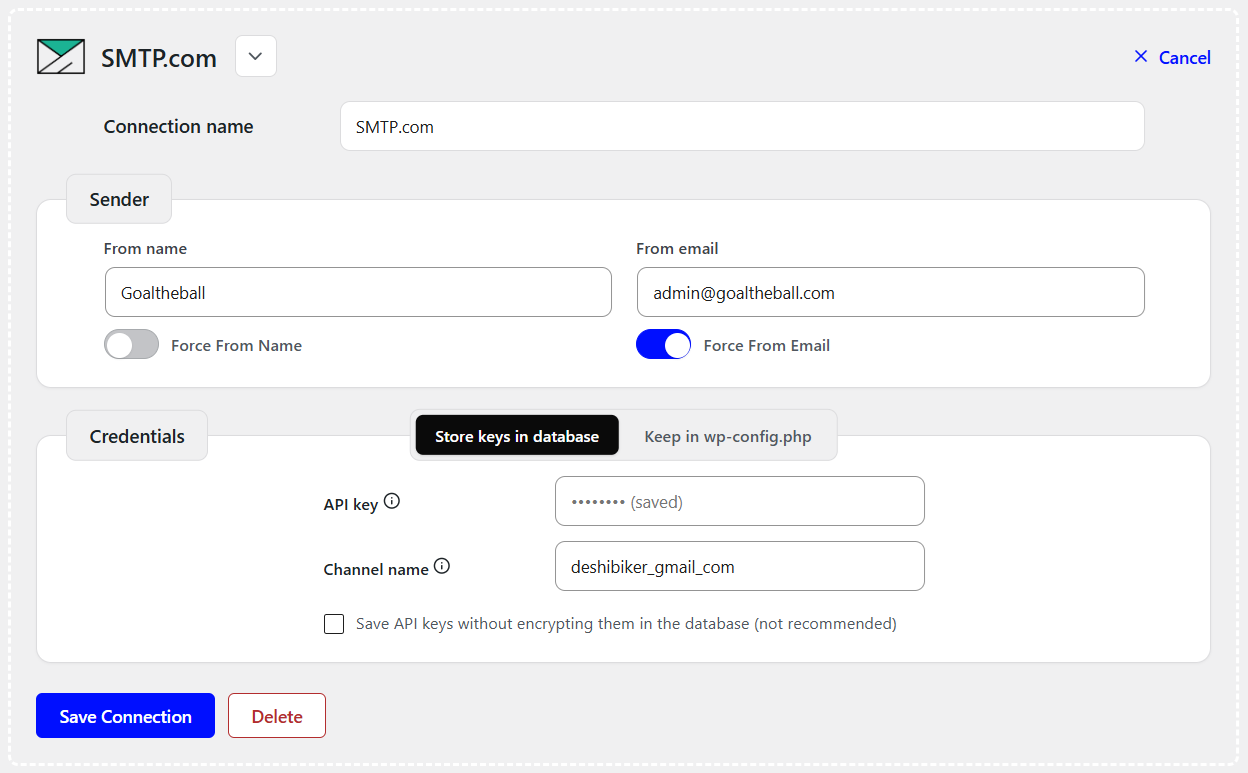
Field-by-field Setup
Connection name
Example: “SMTP.com”.
Actually anything you want. Only for yourself and this name will not send to anywhere.
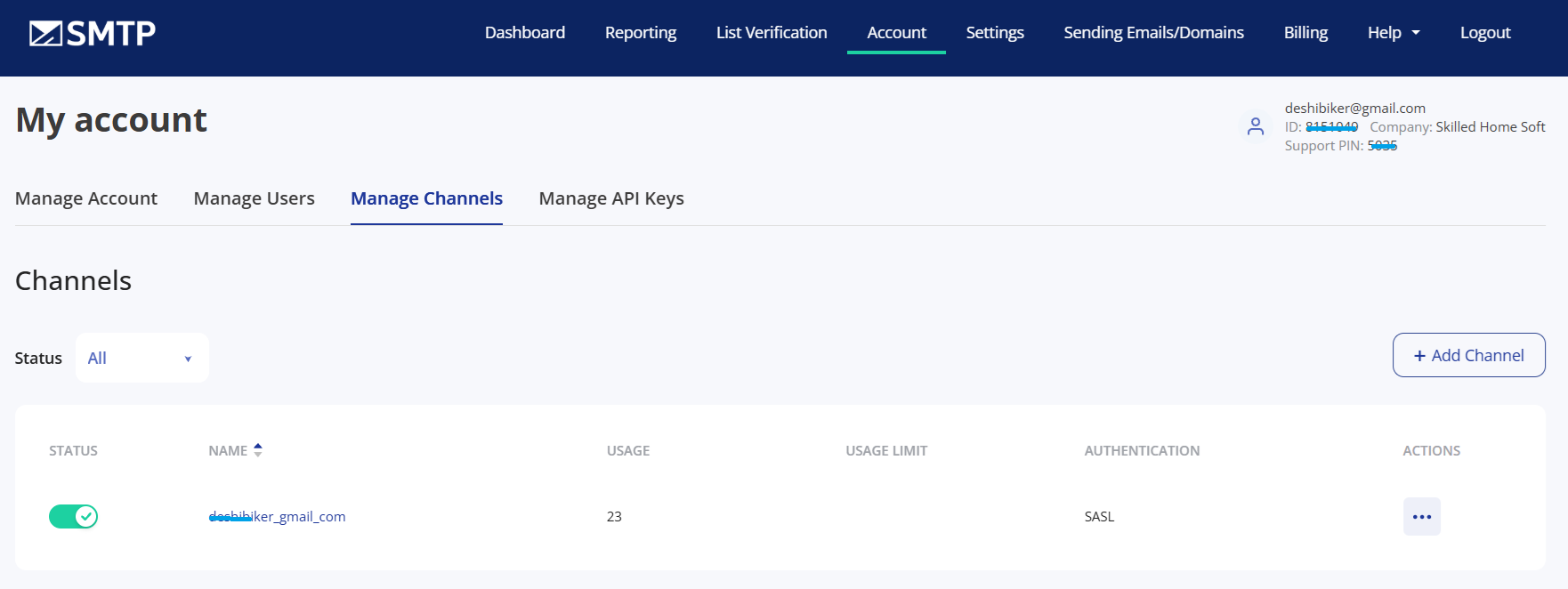
Channel name
- Sign in at my.smtp.com
- Open Account → Manage Channels
- Copy the channel name exactly (case-sensitive).
- Paste into SMTPPai’s Channel name field.
Add Sending Domains
- Go to my.smtp.com → Manage Sending Emails and Domains → Manage Domains → Add New Sending Domain
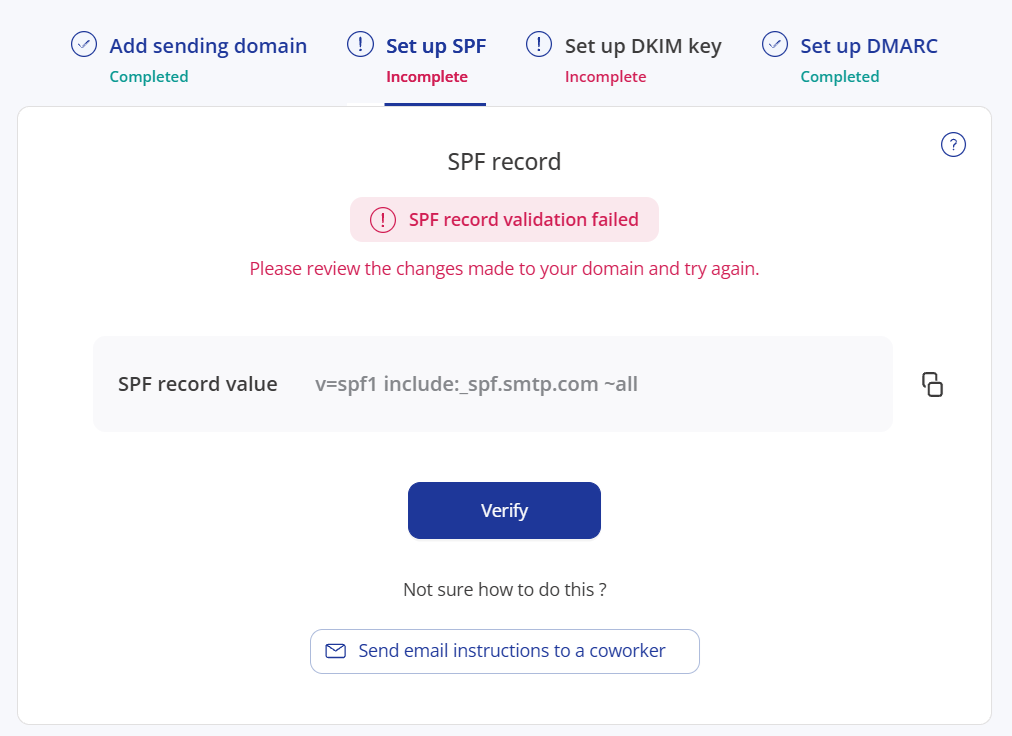
Add your domain name and verify domain by adding SPF record, DKIM, DMARC etc. DNS records in your hosting provider in Cpanel, Cloudflare etc. This is necessary for connection and safe sending.
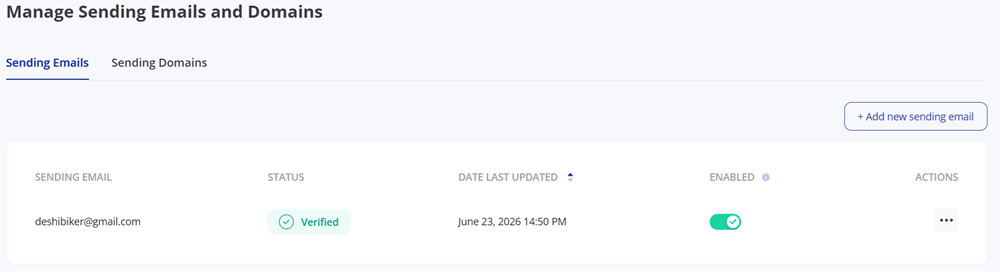
Add Sending Emails
Add any sending email there and click to verify link by using email inbox.
From name
From name could be anything but mostly your business/brand name or specific department of your business (e.g. support@mailpai.com).
From email
Use that From address added in SMTP.com.
API key
- Sign in at my.smtp.com
- Open Account → Manage API key → Generate New, create or copy a API key.
- Paste into SMTPPai.
Credential storage
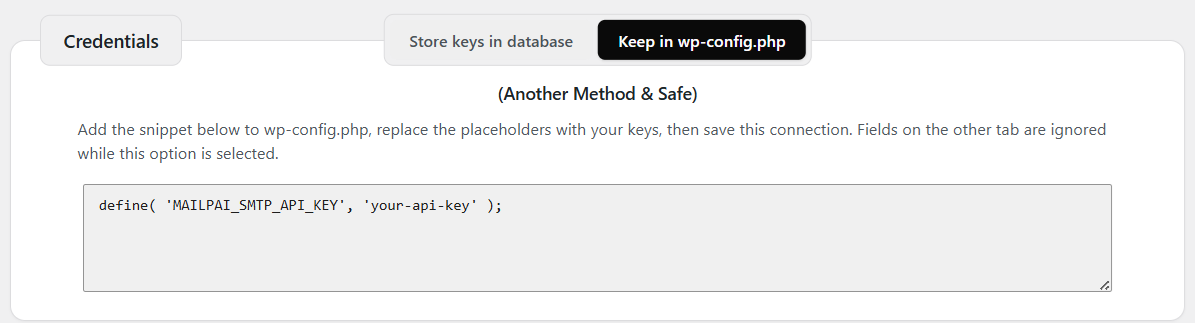
There are two methods in SMTPPai Plugin to add API key by adding credentials in Database or by adding codes in wp-config. You may try any of these.
Save and test
Save → Test → Email Log.
Delivery notes
SMTP.com may return HTTP 200 when it accepts the message; delivery to the final inbox happens afterward. If tests reach one inbox but not another, verify the domain (SPF/DKIM) in SMTP.com, use a From on that domain, and check Message Reports / suppression lists in the SMTP.com dashboard.
Common failures
- Channel name mistyped or wrong case
- From address not allowed on that channel
- API key without send permission
Related: How connections work · Email Log